> ## Documentation Index
> Fetch the complete documentation index at: https://developers.jobhandy.io/llms.txt
> Use this file to discover all available pages before exploring further.
# Create and manage API keys
> Create, scope, deactivate, reactivate, rotate, and delete JobHandy API keys in the administration portal.
API keys are managed in the JobHandy administration portal. This page explains who can manage credentials, how scope is assigned, and how access is revoked or restored.
Open [JobHandy Administration](https://app.jobhandy.io/admin). API key management requires at least one of these portal permissions: **IT**, **HR**, or **Company-Admin**.
## Permission models
Portal permissions and API-key scope are separate controls:
| Control | Applies to | Purpose |
| ----------------- | ----------------------------- | ----------------------------------------------------------------- |
| Portal permission | A signed-in JobHandy user | Determines who may open IT Settings and manage keys |
| API-key scope | A server-to-server credential | Determines which tenants and divisions the integration may access |
A user who may create a key does not automatically grant that key access to every company. The scope selected during creation is the effective API boundary.
## Open API key management
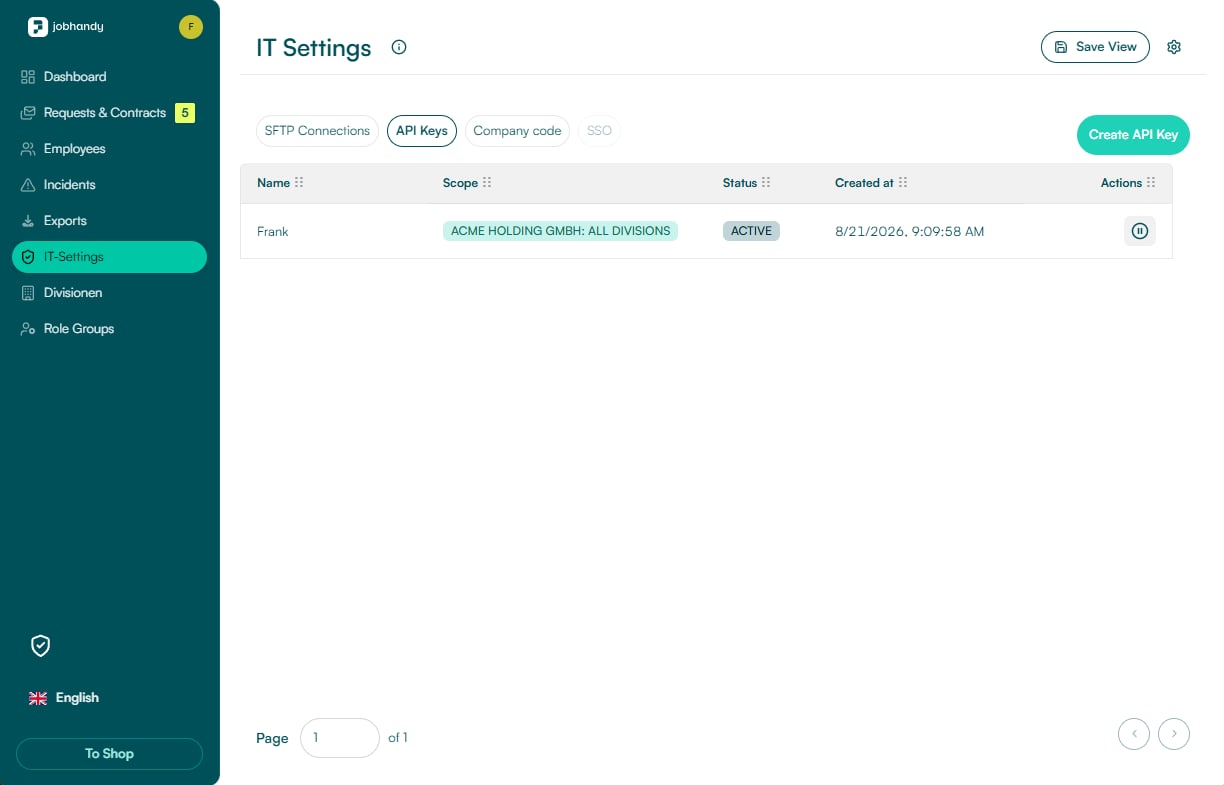
In the administration portal, open **IT Settings** and select the **API Keys** tab. The table shows each key's name, scope, status, creation date, and available actions.
 ## Create an API key
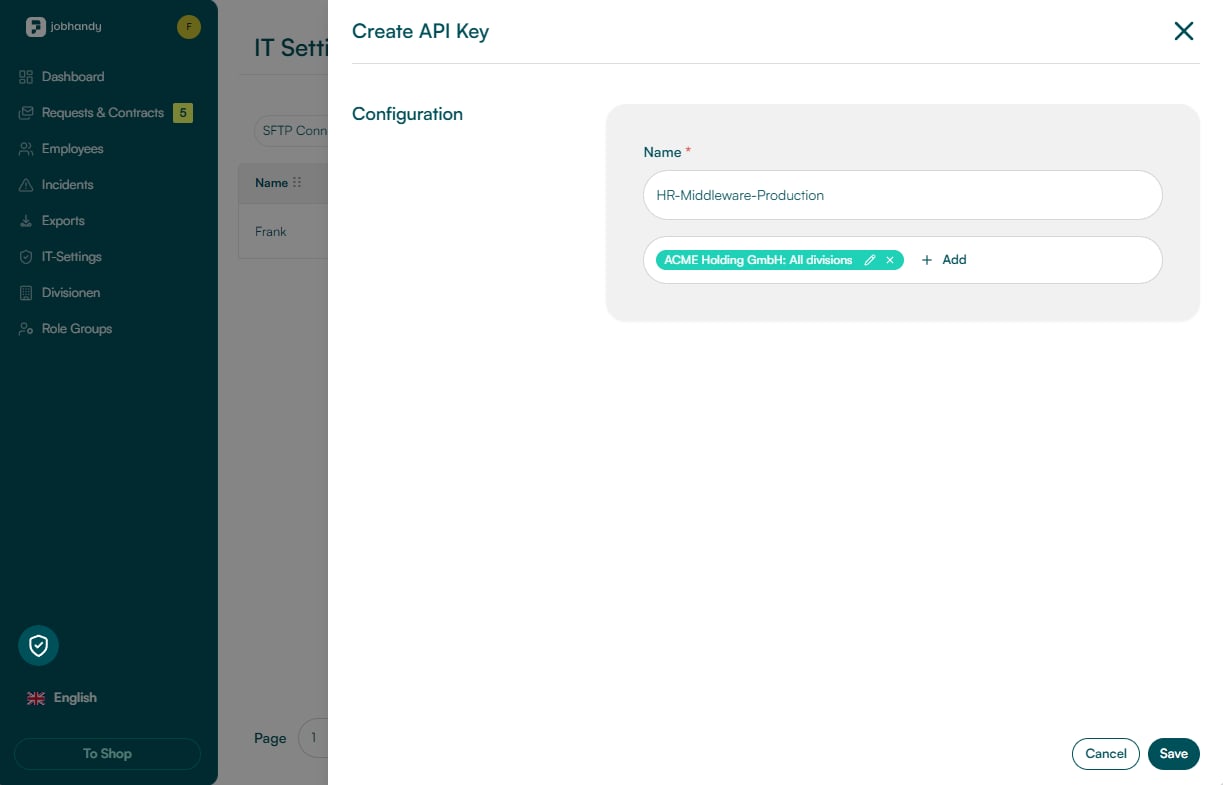
Click **Create API Key** and enter a descriptive name for the consuming system or integration.
Recommended naming pattern:
```text theme={"theme":{"light":"github-light","dark":"github-dark"}}
--
```
```text theme={"theme":{"light":"github-light","dark":"github-dark"}}
HR-Middleware-Employee-Sync-Production
Payroll-Connector-Exports-Production
```
Next, define the companies and divisions the key may access.
## Create an API key
Click **Create API Key** and enter a descriptive name for the consuming system or integration.
Recommended naming pattern:
```text theme={"theme":{"light":"github-light","dark":"github-dark"}}
--
```
```text theme={"theme":{"light":"github-light","dark":"github-dark"}}
HR-Middleware-Employee-Sync-Production
Payroll-Connector-Exports-Production
```
Next, define the companies and divisions the key may access.
 ### Understand scope selection
| Scope option | Result |
| --------------------------- | ---------------------------------------------------------------- |
| **Select all** | Includes the complete division structure of the selected company |
| **Selection only (leaves)** | Includes only the explicitly selected leaf divisions |
| **Include sub-divisions** | Includes a selected division and its subordinate divisions |
```mermaid theme={"theme":{"light":"github-light","dark":"github-dark"}}
flowchart TD
C[Selected company] --> S[Sales]
C --> O[Operations]
S --> E[Enterprise]
S --> M[SMB]
ALL[Select all] -.-> C
SUB[Include sub-divisions: Sales] -.-> S
LEAF[Selection only: Enterprise] -.-> E
```
In the illustrated example, **Select all** applies the key to the complete company structure of the selected organization.
Use the narrowest scope required. Create separate keys for systems with different responsibilities, companies, or operational owners.
Click **Add** to apply the selected scope and then **Save** to create the key.
## Copy and store the generated key
JobHandy displays the complete credential immediately after creation. The key is active and can be used in the `X-API-Key` request header.
### Understand scope selection
| Scope option | Result |
| --------------------------- | ---------------------------------------------------------------- |
| **Select all** | Includes the complete division structure of the selected company |
| **Selection only (leaves)** | Includes only the explicitly selected leaf divisions |
| **Include sub-divisions** | Includes a selected division and its subordinate divisions |
```mermaid theme={"theme":{"light":"github-light","dark":"github-dark"}}
flowchart TD
C[Selected company] --> S[Sales]
C --> O[Operations]
S --> E[Enterprise]
S --> M[SMB]
ALL[Select all] -.-> C
SUB[Include sub-divisions: Sales] -.-> S
LEAF[Selection only: Enterprise] -.-> E
```
In the illustrated example, **Select all** applies the key to the complete company structure of the selected organization.
Use the narrowest scope required. Create separate keys for systems with different responsibilities, companies, or operational owners.
Click **Add** to apply the selected scope and then **Save** to create the key.
## Copy and store the generated key
JobHandy displays the complete credential immediately after creation. The key is active and can be used in the `X-API-Key` request header.
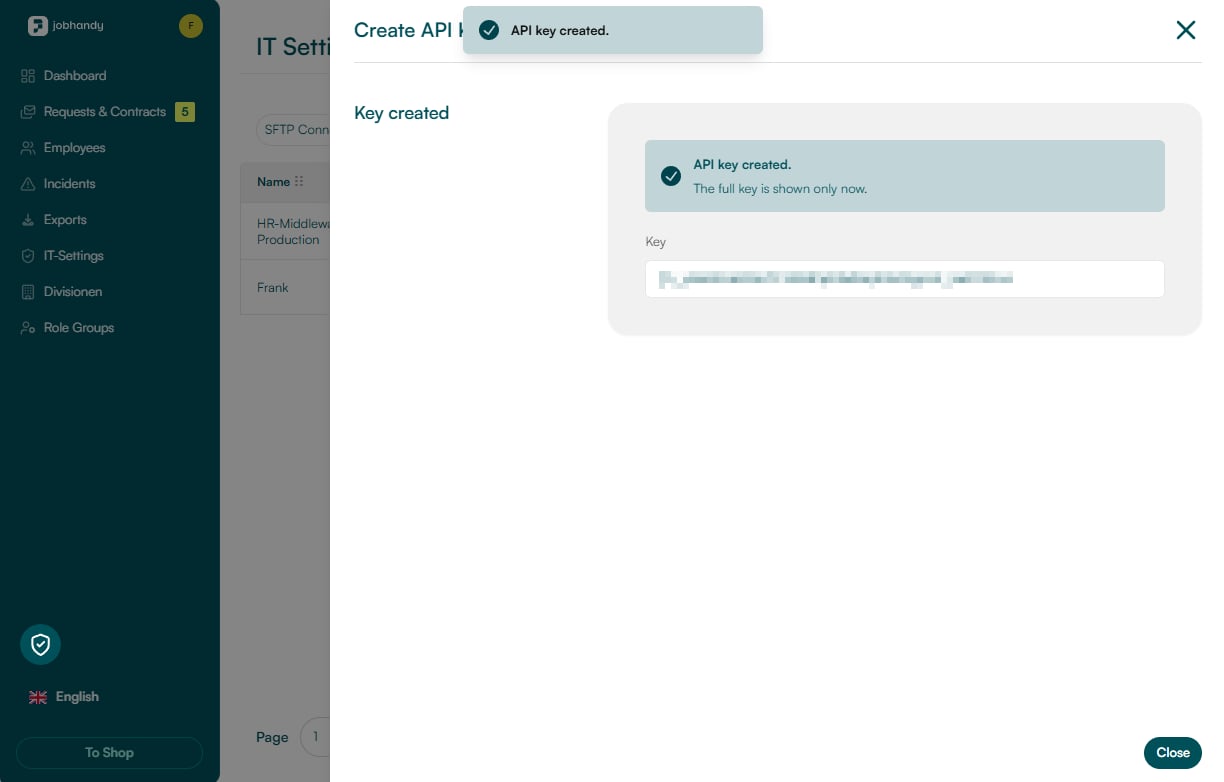 Copy the key immediately and store it in a secret manager. Do not place API keys in source code, browser applications, public repositories, tickets, screenshots, or application logs.
## Verify the active key
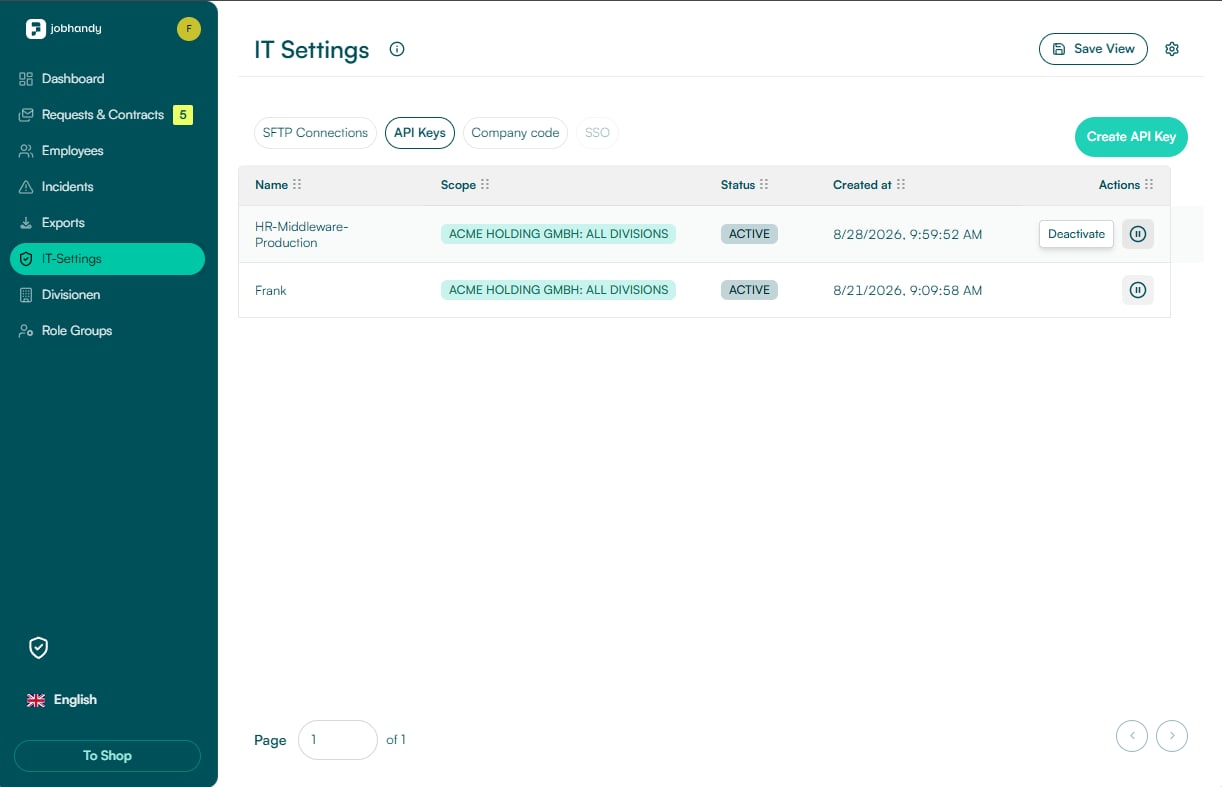
After closing the dialog, the key appears with status **ACTIVE**. The **Deactivate** action revokes the credential without deleting it.
Copy the key immediately and store it in a secret manager. Do not place API keys in source code, browser applications, public repositories, tickets, screenshots, or application logs.
## Verify the active key
After closing the dialog, the key appears with status **ACTIVE**. The **Deactivate** action revokes the credential without deleting it.
 ## Deactivate, reactivate, or delete
Click **Deactivate** when access must be revoked. Deactivation takes effect for subsequent protected requests. After deactivation, the key is shown with status **INACTIVE** and can be reactivated or deleted.
## Deactivate, reactivate, or delete
Click **Deactivate** when access must be revoked. Deactivation takes effect for subsequent protected requests. After deactivation, the key is shown with status **INACTIVE** and can be reactivated or deleted.
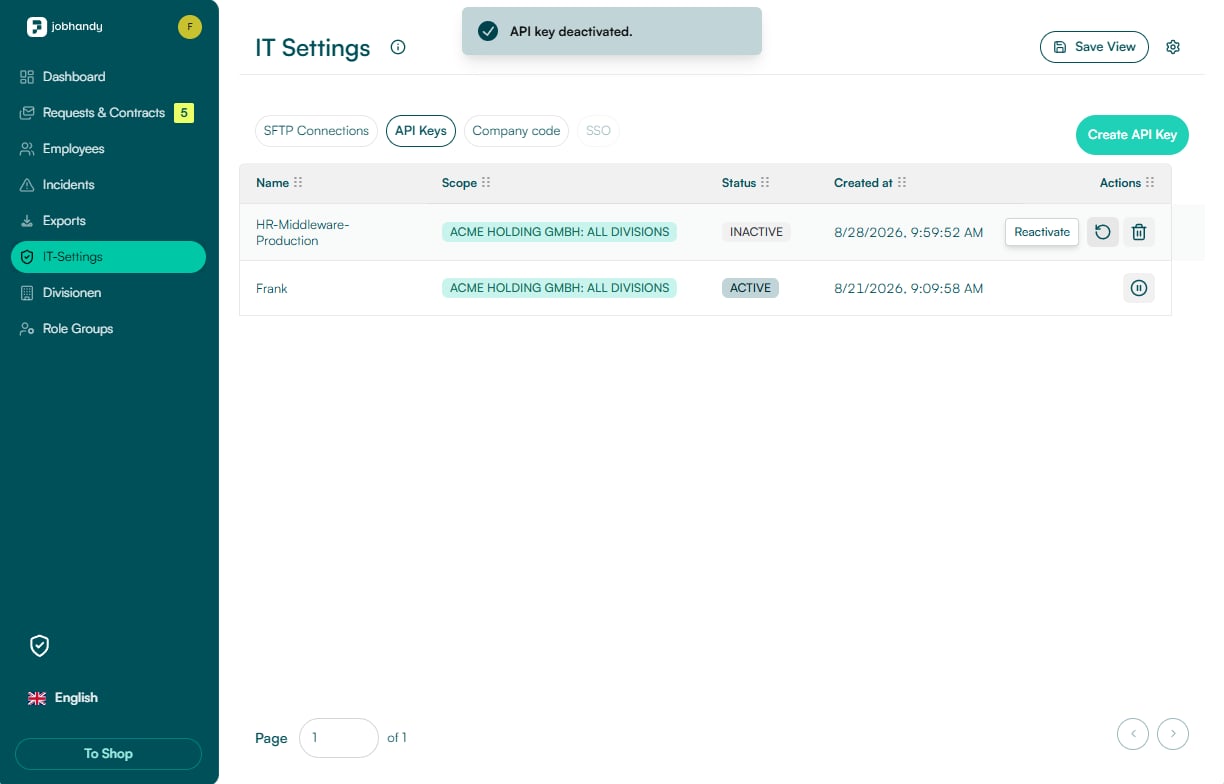 | Action | Use when | Result |
| -------------- | -------------------------------------------------- | ------------------------------------------------------ |
| **Deactivate** | Access must stop immediately but might be restored | The key no longer authenticates protected requests |
| **Reactivate** | The same credential should become usable again | The inactive key becomes active again |
| **Delete** | The credential is permanently retired | The key can no longer be restored through reactivation |
## Rotate a key without downtime
```mermaid theme={"theme":{"light":"github-light","dark":"github-dark"}}
sequenceDiagram
participant Admin as Company administrator
participant Portal as JobHandy administration
participant Secrets as Secret manager
participant Client as Integration
participant API as JobHandy API
Admin->>Portal: Create replacement key with equivalent scope
Portal-->>Admin: Display replacement key
Admin->>Secrets: Store replacement key
Secrets-->>Client: Deploy new credential
Client->>API: Verify protected request
API-->>Client: Success + X-Request-ID
Admin->>Portal: Deactivate old key
Admin->>Portal: Delete old key after verification
```
Do not deactivate the old key until the replacement has completed a successful protected request in every active integration instance.
Use the operational runbook for preparation, rollout, verification, rollback, and retirement.
## API key lifecycle
```mermaid theme={"theme":{"light":"github-light","dark":"github-dark"}}
stateDiagram-v2
[*] --> ACTIVE: Create
ACTIVE --> INACTIVE: Deactivate
INACTIVE --> ACTIVE: Reactivate
INACTIVE --> DELETED: Delete
DELETED --> [*]
```
For request headers and authentication failures, continue with [Authentication](/get-started/authentication).
| Action | Use when | Result |
| -------------- | -------------------------------------------------- | ------------------------------------------------------ |
| **Deactivate** | Access must stop immediately but might be restored | The key no longer authenticates protected requests |
| **Reactivate** | The same credential should become usable again | The inactive key becomes active again |
| **Delete** | The credential is permanently retired | The key can no longer be restored through reactivation |
## Rotate a key without downtime
```mermaid theme={"theme":{"light":"github-light","dark":"github-dark"}}
sequenceDiagram
participant Admin as Company administrator
participant Portal as JobHandy administration
participant Secrets as Secret manager
participant Client as Integration
participant API as JobHandy API
Admin->>Portal: Create replacement key with equivalent scope
Portal-->>Admin: Display replacement key
Admin->>Secrets: Store replacement key
Secrets-->>Client: Deploy new credential
Client->>API: Verify protected request
API-->>Client: Success + X-Request-ID
Admin->>Portal: Deactivate old key
Admin->>Portal: Delete old key after verification
```
Do not deactivate the old key until the replacement has completed a successful protected request in every active integration instance.
Use the operational runbook for preparation, rollout, verification, rollback, and retirement.
## API key lifecycle
```mermaid theme={"theme":{"light":"github-light","dark":"github-dark"}}
stateDiagram-v2
[*] --> ACTIVE: Create
ACTIVE --> INACTIVE: Deactivate
INACTIVE --> ACTIVE: Reactivate
INACTIVE --> DELETED: Delete
DELETED --> [*]
```
For request headers and authentication failures, continue with [Authentication](/get-started/authentication).